
하수관이 막히지 않는
주방을 만듭니다
일반 음식물처리기는 배출수가 천천히 흘러 배관에 찌꺼기가 쌓이고 하수관이 막히기 쉽습니다. 하연은 특허 배수시스템으로 배출수를 강하게 밀어내 막힘과 악취, 역류 걱정을 줄입니다.

업소용 음식물처리기 실적
최우수등급
연 매출 달성
직접 운영
원격 대응
특허받은 강제배수 시스템
자연배수 방식은 처리수가 중력으로 천천히 흘러나가며 유지분과 미세 찌꺼기가 배관 벽과 바닥에 흡착 및 퇴적되어 스케일 증상이 발생하여 막힙니다. 하연은 배수 단계에서 펌프로 처리수를 적정 압력으로 밀어내어 배관 안에 머무는 시간이 짧고 유속이 빨라 퇴적이 생기지 않습니다.

음식물쓰레기 투입
주방에서 나온 음식물을 뚜껑만 열고 그대로 투입합니다.
미생물 발효·부숙
미생물이 빠르게 자가증식하며 음식물을 발효·부숙시켜 부피를 크게 줄여 감량화합니다.
부산물 회수
발효·부숙된 부산물은 따로 회수되어 퇴비, 사료 또는 원료로 쓸 수 있습니다.
특허 배수시스템으로 강제배수
분리된 배출수는 특허 배수시스템이 폐기물관리법령에 적합하게 강하게 밀어내 하수관 막힘을 개선합니다.
음식물처리기 A/S의 약 70%는
막힘 · 역류 · 악취입니다
자연배수 방식은 배출수가 중력으로 천천히 흘러 배관 안에 찌꺼기가 쌓일 수밖에 없습니다. 결국 하수관이 막히고 오수가 역류하거나 악취가 나서 A/S를 부르게 됩니다.
하연은 특허 강제배수 시스템으로 이 원인을 근본적으로 줄였고, 고질적으로 하수관 막힘 증상이 있었던 곳도 뚫리는 개선 효과가 있습니다.
음식물처리기 사용으로 발생하는 A/S 중
하수관 막힘 · 역류 · 악취가 차지하는 비율
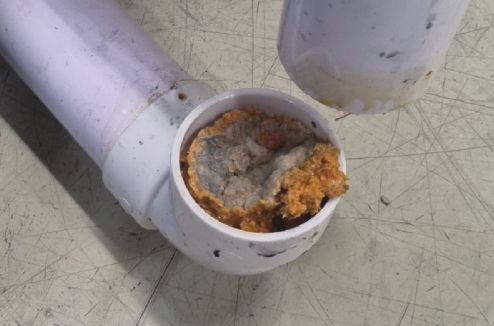

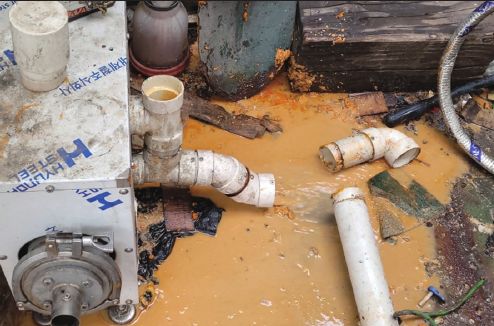


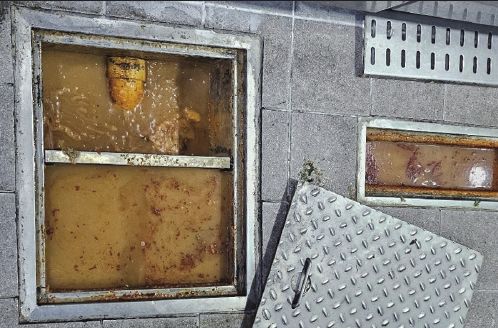
자연배수 방식 처리기 사용 현장에서 실제로 발생한 막힘 · 역류 사례
| 비교 항목 | 일반 자연배수 방식 | 하연 특허 강제배수 |
|---|---|---|
| 배출수 처리 | 중력으로 천천히 흘러감 | 특허 배수시스템이 강하게 밀어냄 |
| 하수관 막힘 | 찌꺼기가 쌓여 자주 막힘 | 퇴적을 줄여 막힘 개선 |
| 역류 · 악취 | 막히면 오수 역류, 악취 발생 | 역류 · 악취 걱정 감소 |
| A/S 빈도 | 배관 관련 출동이 잦음 | 배관 관련 A/S가 적음 |
| 배관 비용 | 통수작업, 고압세척 등 비용 부담 4천만원 피해 사례 보기 → | 배관 유지비 절감 |
| 고장 관리 | 고장 난 뒤에 신고 · 출동 | KT IoT로 고장 전 사전 확인 · 원격 대응 |
고장 나기 전에 먼저 알고, 원격으로 대응합니다
KT LTE 망으로 연결된 IoT 관제 서비스가 설치된 처리기의 상태를 실시간으로 지켜봅니다. 이상 징후를 미리 발견해 고장 전에 점검하고, 일부 문제는 현장 방문 없이 원격으로 조치합니다.
- 실시간 상태 모니터링
KT LTE 망으로 가동 상태를 24시간 확인합니다. - 고장 전 사전 감지
이상 징후가 보이면 고장이 나기 전에 먼저 연락하고 점검합니다. - 원격 대응
일부 설정과 조치는 원격으로 처리해 멈춤 시간을 줄입니다.
전원 꺼짐 감지 → 고객센터 사전 연락 → 차단기·전원 확인 안내 또는 방문 점검
현장에 맞춘 제품 라인업
식당·급식소부터 백화점, 집합건물, 농산물 가공 현장까지 처리량과 설치 환경에 맞는 장비를 직접 제조합니다.

업소용 음식물처리기
특허 강제배수 시스템과 내장형 분리기를 갖춘 하연의 주력 HYN 시리즈입니다. 하루 50kg부터 300kg까지 6개 모델.
- 조달청 우수 실적 제품
- 호텔·백화점·집합건물 전용 모델
- KT IoT 원격 모니터링
- CE 인증 (유럽 수출)
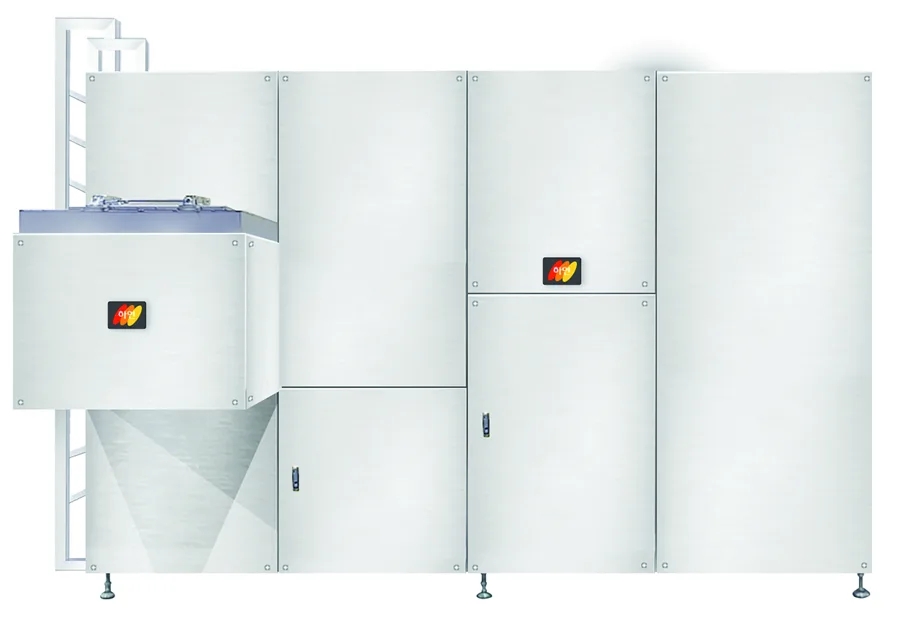
식물성 잔재물 발효건조 장치
4,000리터급 대용량. 채소·과일 껍질 등 식물성 잔재물을 발효 건조합니다.
제원 보기 →
집합건물용 RFID 음식물처리기
배출자별 RFID 카드로 배출량을 계량하여 웹 페이지에서 관리합니다.
제원 보기 →자동투입 리프트
무거운 음식물 통을 자동으로 들어 올려 투입합니다.
제원 보기 →원샷세제
처리기 관리에 맞춘 전용 세제입니다.
제원 보기 →제품별 제원표
하루 잔반 발생량에 맞춰 모델을 고르세요. HYN 시리즈는 특허 강제배수 시스템과 내장형 분리기를 갖춘 최신형입니다.
정격전압 전 모델 220V 단상 · 60Hz
| 이미지 | 모델명 | 1일 처리용량 | 내통 용량 | 발효기 크기 (W×D×H, mm) | 분리기 | 표준 소비전력 | 월 전기요금 | 월 렌탈료 (48개월) |
|---|---|---|---|---|---|---|---|---|
 | HYN70L | 50~70kg | 90L | 786 × 486 × 967 | 내장형 | 0.05kWh | 약 1~2만원 | 250,000원 |
| HYN110L | 90~110kg | 170L | 830 × 720 × 975 | 내장형 | 0.06kWh | 약 2~3만원 | 370,000원 |
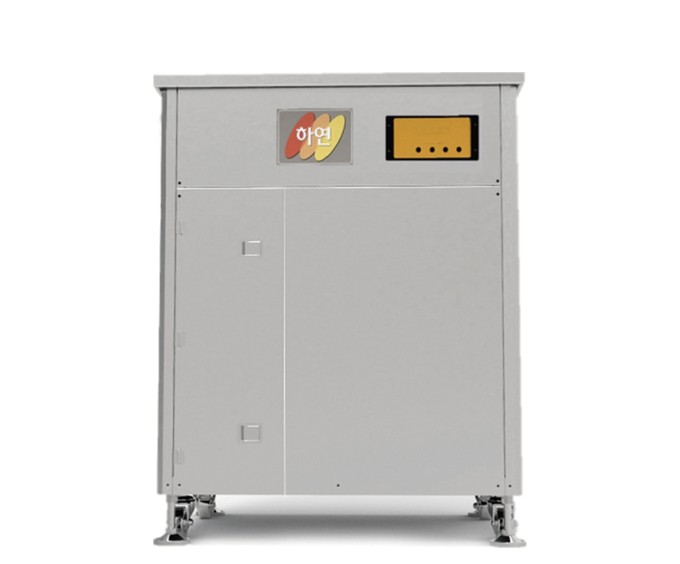 | HYN150L | 110~150kg | 195L | 830 × 720 × 1,085 | 내장형 | 0.06kWh | 약 2~3만원 | 405,000원 |
 | HYN170L | 150~170kg | 215L | 830 × 720 × 1,123 | 내장형 | 0.06kWh | 약 2~3만원 | 477,000원 |
| HYN220L | 190~220kg | 425L | 1,450 × 840 × 1,082 | 내장형 | 0.7kWh | 약 4~5만원 | 550,000원 |
 | HYN300L | 200~300kg | 460L | 1,450 × 840 × 1,200 | 내장형 | 0.7kWh | 약 4~5만원 | 640,000원 |
| HYN220L_RFID | 190~220kg | 425L | 1,450 × 840 × 1,440 | 내장형 | 0.71kWh | 약 4~5만원 | 750,000원 |
- 발효기 크기
- 786 × 486 × 967 mm
- 분리기
- 내장형
- 표준 소비전력
- 0.05kWh
- 월 전기요금
- 약 1~2만원
- 발효기 크기
- 830 × 720 × 975 mm
- 분리기
- 내장형
- 표준 소비전력
- 0.06kWh
- 월 전기요금
- 약 2~3만원
- 발효기 크기
- 830 × 720 × 1,085 mm
- 분리기
- 내장형
- 표준 소비전력
- 0.06kWh
- 월 전기요금
- 약 2~3만원
- 발효기 크기
- 830 × 720 × 1,123 mm
- 분리기
- 내장형
- 표준 소비전력
- 0.06kWh
- 월 전기요금
- 약 2~3만원
- 발효기 크기
- 1,450 × 840 × 1,082 mm
- 분리기
- 내장형
- 표준 소비전력
- 0.7kWh
- 월 전기요금
- 약 4~5만원
- 발효기 크기
- 1,450 × 840 × 1,200 mm
- 분리기
- 내장형
- 표준 소비전력
- 0.7kWh
- 월 전기요금
- 약 4~5만원
- 발효기 크기
- 1,450 × 840 × 1,440 mm
- 분리기
- 내장형
- 표준 소비전력
- 0.71kWh
- 월 전기요금
- 약 4~5만원
렌탈료는 부가세 포함 금액입니다. 처리용량은 잔반 기준이며 음식물 성상에 따라 달라질 수 있습니다.
단체표준 법정 임의인증 SPS-B KFPC 0001-7231 · 단체표준명 음식물류 폐기물 처리기 · 처리방식 발효식(부산물 배출 회수방식)
나라장터 종합쇼핑몰 등록 제품 모델명
| 모델명 | 일 처리량 | 물품 등록번호 | 물품 식별번호 |
|---|---|---|---|
| TT-W60 | 50kg | 23181998 | 25251582 |
| TT-W90S | 90kg | 23181998 | 25228470 |
| TT-W300S | 110kg | 23181998 | 25228471 |
| TT-W150S | 150kg | 23181998 | 25737632 |
| TT-WDS | 190kg | 23181998 | 23986610 |
제조부터 렌탈까지, 하연그룹이 직접
하연그룹은 하연렌탈홀딩스, 하연네트웍스, 하연렌탈, 하연글로벌 4개 관계사로 음식물처리기와 축산분뇨·오폐수 처리 장비의 제조, 렌탈, 사후관리를 한 그룹 안에서 책임집니다. 중간 유통사 없이 제조사가 계약 기간 내내 장비를 관리합니다.
- 초기 구매 부담 없이 월 렌탈로 도입
- 조달청 임대서비스로 공공기관도 바로 계약
- 4년 렌탈 종료 후 신형 교체 설치
- 4,000리터급 발효건조장치 렌탈 출시
- 축산분뇨 악취저감 폐수처리 설비 설치
- 공공하수종말처리장 시설 적용 가능
숫자와 현장이 증명합니다
유기성 잔재물 처리 장치 특허 등록
특허 무효심판 승소
조달청 나라장터 실적평가 16회 연속 최우수등급
중소기업중앙회 표창장 수상
유럽 수출용 CE 인증 획득 · 프랑스 뮬로사 수출 독점 계약
국회 환경노동위원장상 수상 · 여성기업 등록
중소벤처기업부장관 표창장 수상
인증서 · 특허증누르면 크게 볼 수 있습니다.
전국 5,000여 대 설치로 검증된 품질설치 현장 사진 누르면 크게 볼 수 있습니다.
고장 났나요? 먼저 이렇게 확인해 보세요
HYN 시리즈(HYN70L · 110L · 150L · 170L · 220L · 300L) 사용 중 증상별 자가 응급조치입니다.안내대로 해도 해결되지 않으면 AS 콜센터 1661-3145로 연락해 주세요.
- 청소나 점검 전에는 전원을 끄세요.
- 젖은 손으로 전원 코드를 만지지 마세요.
- 회전하는 내통과 교반기에 손을 넣지 마세요.
- 가동 중에는 전면 커버를 열지 마세요.
- 고장일 때는 음식물을 투입하지 마세요.
증상을 골라 주세요
전원이 안 켜져요
먼저 확인하세요
- 기계 정면 화면(LED 표시창)에 불이 들어와 있는지 봅니다.
- 건물 분전함(두꺼비집)에서 이 기계의 차단기가 내려가 있으면 다시 올립니다.
- 전원 플러그가 콘센트에 끝까지 꽂혀 있는지 봅니다. 헐겁게 꽂히면 전력이 불안정해 차단기가 내려갈 수 있습니다.
- 전원 코드가 꺾이거나 눌리거나 피복이 벗겨졌는지 눈으로 확인합니다.
- 마른 손으로 코드를 뽑았다 다시 꽂고, 같은 콘센트에 다른 전자기기를 꽂아 전기가 들어오는지 확인합니다.
- 멀티탭이나 연장선을 쓰고 있다면 빼고, 10A 이상 접지 콘센트를 이 기계 하나만 쓰도록 바꿉니다.
- 전면 아래쪽 큰 판(겉 케이스)을 열고 기계 차단기가 내려가 있으면 올립니다.
자주 묻는 질문
어떤 음식물을 넣을 수 있나요?
넣어도 되는 것
넣으면 안 되는 것
금지 물질이 들어갔다면 전원을 끄고 꺼내세요.
도어를 10분 이상 열어두고 써도 되나요?
1~2주 영업을 쉬거나 방학 기간에는 어떻게 하나요?
발효기는 어떻게 청소하나요?
- 주 1회 회전 임펠러와 샤프트에 섬유질이 감겼는지 확인하고, 감겨 있으면 전원을 끄고 제거
- 주 1회 이상 상부 도어를 열고 내통 안쪽 빨간 부위 주변을 물청소
- 수시로 상부 도어 주변 이물질과 도어 자석 센서 부착 확인
오렌지 껍질만 넣어도 분해되나요?
뼈나 조개껍데기, 씨앗을 갈아서 넣어도 되나요?
미생물은 어떻게 보충하나요?
- 퇴근 전 기계 좌측 작은 도어를 열고 내통 급수 밸브를 잠급니다.
- 상부 도어를 열고 미생물을 내통에 골고루 뿌립니다.
- 도어를 닫고 LED 판넬에 전원이 정상인지 확인합니다.
- 다음 날 출근 시 급수 밸브를 전부 엽니다.
공지사항
전국 설치 및 A/S 센터
AS 콜센터 1661-3145 · 평일 09:00 – 18:00 · 휴일 08:00 – 20:00
음식물처리기 도입 가이드
렌탈 비용, 분쇄기·발효건조기 비교, 감량기 고르는 법까지 도입 전에 많이 묻는 내용을 정리했습니다.